Localized messages
For all automatic discounts, you can override discount messages with translations for all your store’s published locales. This allows you to display discount information to customers in their preferred language.
How to add translated overrides
Section titled “How to add translated overrides”-
Create or edit an automatic discount
Navigate to your discount configuration and ensure the discount method is set to Automatic.
-
Find the title override field
Scroll to the tier settings where you can set an override title.
-
Click the translate button

Click the translate button that appears inside the title override field.
-
Choose a language
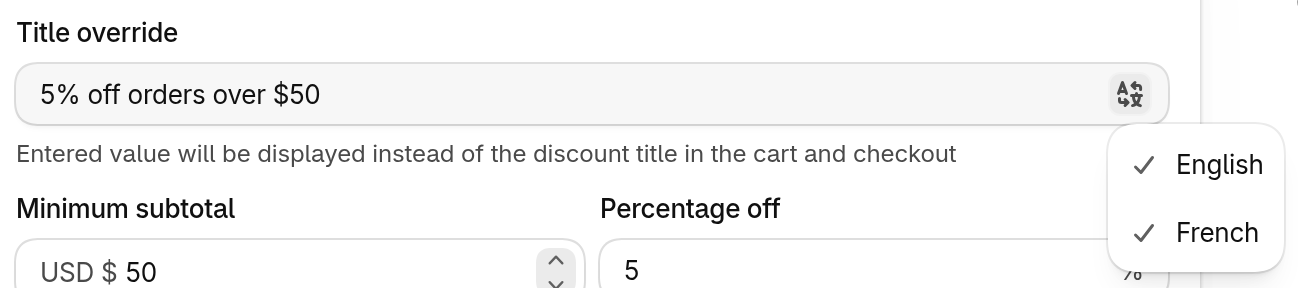
A menu opens listing every published locale. A checkmark next to a language means a translation is already set. Click the language you want to edit.
-
Enter your translated override
The field switches to that locale, with the locale code shown as a prefix. Type your translated message. Repeat from the previous step for each language you want to support.
-
Save your changes
Click Save to apply your changes.
Limitations
Section titled “Limitations”The following discount configurations cannot be localized:
- Manual discount codes: Localization is only available for automatic discounts. Manual codes use a single title across all locales.
- Discount code titles: When using the discount code method, the code itself and its title cannot be translated.